Sub-Account Management
The sub-account management feature allows a primary account to create and manage multiple sub-accounts, enabling hierarchical account management and unified billing within an organization.
Terminology
- Primary Account: An account that has completed identity verification and holds wallet and global management permissions. The primary account can create and manage sub-accounts and bears all sub-account expenses.
- Sub-Account: Created by the primary account, it can log in independently and use platform resources, with billing consolidated under the primary account. Data between sub-accounts is fully isolated, with no need for separate identity verification or recharging.
Access
Prerequisites
Before using the sub-account management feature, the primary account must complete identity verification. Only after verification can sub-account functionality be enabled.
Steps to Access
- Log in to the d.run platform
- Click the profile icon in the upper-right corner, and select Sub-Account from the dropdown menu
- Click to enter the sub-account management interface
Management Features
Account Operations
The primary account can perform the following operations on sub-accounts:
- Create Sub-Account: Create a new sub-account and set basic information
- Disable Sub-Account: Temporarily disable sub-account login and resource usage
- Delete Sub-Account: Permanently delete a sub-account and its related data
- Edit Information: Modify basic details and configurations of a sub-account
Data Isolation
- Sub-accounts can log in independently and use platform features and services
- Data is completely isolated between sub-accounts, ensuring no interference
- Each sub-account has its own workspace and resource view
Billing Management
- Sub-accounts do not need separate recharges; all consumption is charged from the primary account wallet
- Supports expense statistics and analysis by sub-account
- Bills and transaction details show specific consumption per sub-account
Expense Center Permissions
After the primary account enables sub-accounts, the visibility and data scope in the Expense Center are as follows:
| Feature | Primary account | Sub-account |
|---|---|---|
| Wallet | Visible; manages the primary account wallet | Visible when the primary account has not set a quota for the sub-account; can view the balance shared with the primary account |
| Transactions | Can view and filter primary-account and sub-account records by account | Can view records for the currently signed-in account only |
| Orders | Can view and filter primary-account and sub-account orders by account | Can view orders for the currently signed-in account only |
| Bill Details | Can view and filter primary-account and sub-account bills by account | Can view bills for the currently signed-in account only |
| Monthly Bills | Can view monthly bills and account-level statistics | Not visible |
| Vouchers | Visible; manages primary-account vouchers | Not visible |
Transactions, order lists, and bill lists display the username and User ID. Primary accounts can use the Account dropdown to select the primary account or any managed sub-account for filtering.
Naming Rules
Username Format
Sub-account usernames follow a fixed format: <PrimaryAccountID>#<SubAccountName>
Example: daocloud-test#samzong
Character Restrictions
- Allowed characters: Lowercase letters (a–z), numbers (0–9), and hyphen (-)
- Length: 1–49 characters
- Start/End: Must begin and end with a letter or number
- Prohibited characters: Spaces, Chinese characters, and special symbols are not allowed
Important Note
Attention
Once created, usernames cannot be changed. Please choose carefully.
Security Settings
Sub-accounts support full security management features:
Login Security
- Password Reset: The primary account can reset a sub-account’s login password
- Login Status Management: View and manage the login status of sub-accounts
Access Control
- Access Keys (AK/SK): Generate and manage API access keys for sub-accounts
- SSH Public Key: Configure SSH public keys to enable password-free access to server resources
Operation Audits
Key operations performed by primary and sub-accounts are recorded in Operation Audits. This helps track account operations, resource changes, and abnormal activities.
Accessing Operation Audits
- Log in to the d.run platform.
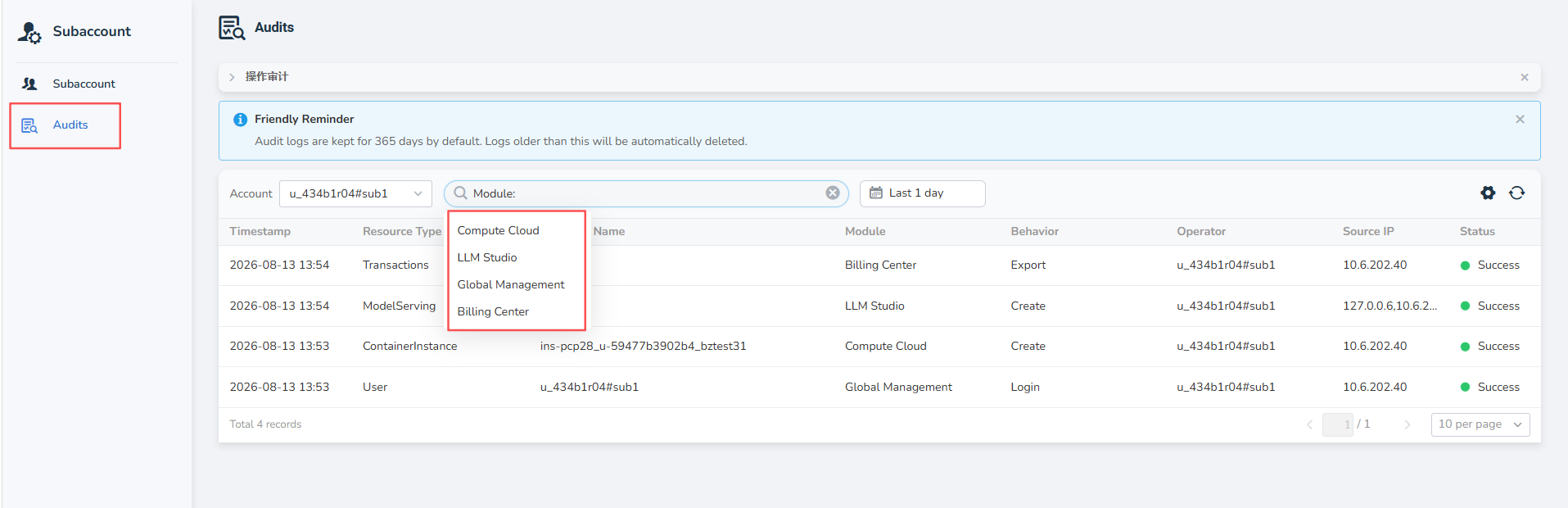
- Click the profile icon in the upper-right corner and open Subaccount.
- Click Audits in the left navigation panel.
Query and Filter
The Operation Audits page supports the following filters:
- Account: Select the primary account or a sub-account to view.
- Module: Filter records by product module, including Compute Cloud, LLM Studio, Global Management, and Billing Center.
- Time range: Filter audit records by a specified time range.
Audit records include the following fields:
| Field | Description |
|---|---|
| Timestamp | The time when the operation occurred. |
| Resource Type | The type of the affected resource, such as Transaction, ModelServing, ContainerInstance, or User. |
| Name | The name or identifier of the affected resource. |
| Module | The product module where the operation occurred. |
| Behavior | The operation performed, such as Create, Login, or Export. |
| Operator | The account that performed the operation. |
| Source IP | The source IP address of the request. |
| Status | The result of the operation, such as Success or Failure. |
Audit logs are retained for 365 days by default. Logs older than the retention period are automatically deleted.